
Guide for Mac users
How to Limit Bandwidth for One App on Mac
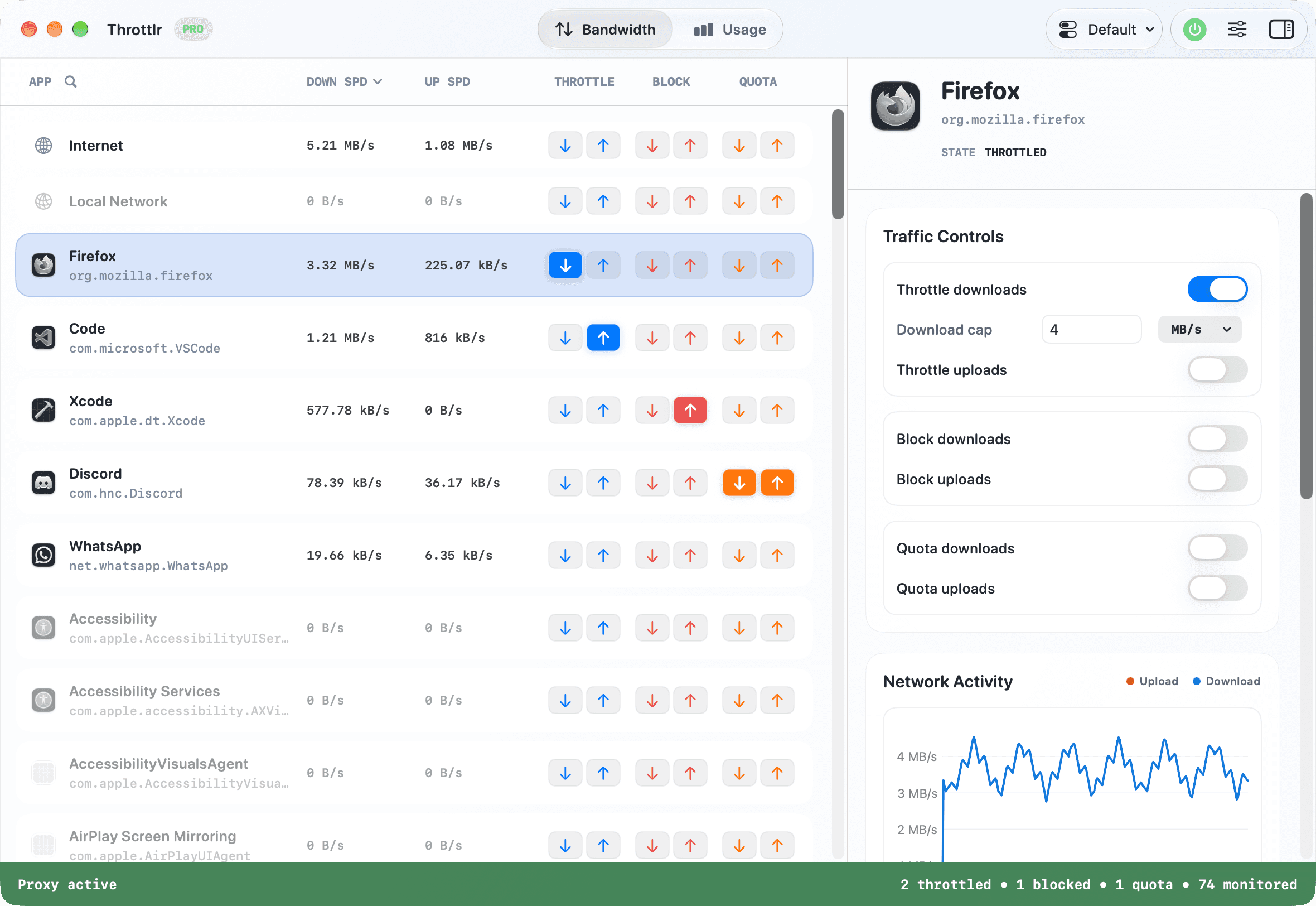
To limit bandwidth for one Mac app, use Throttlr to set separate download and upload caps for that app. Other applications keep using the connection normally, so you can slow a cloud sync, browser download, or game update without applying a system-wide limit.
Published
How to limit bandwidth for one Mac app
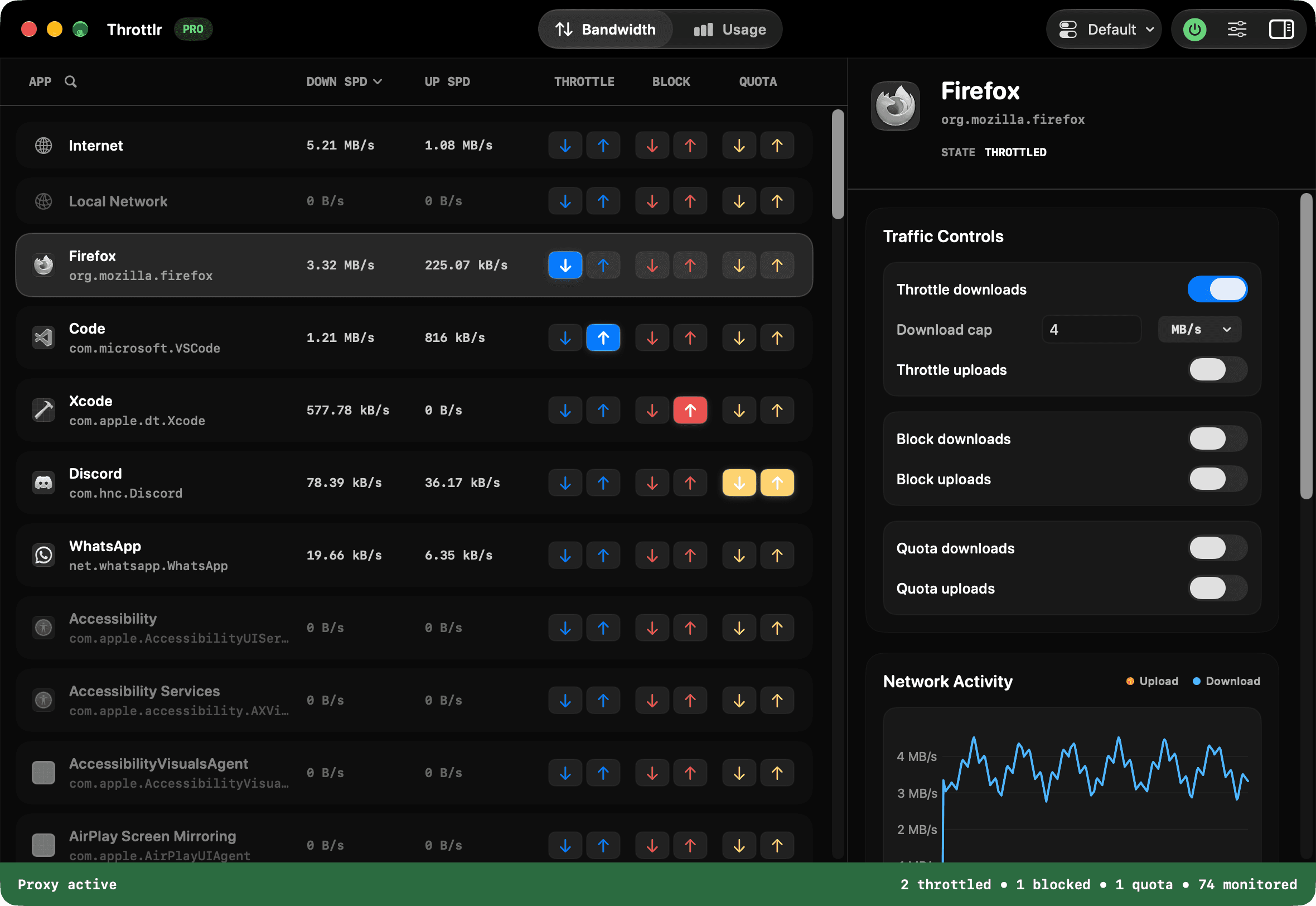
Start Throttlr's proxy, select the application that is using the connection, and enable a download cap, an upload cap, or both. The selected app continues transferring data, but only up to the rates you set. Other applications remain unrestricted unless you also place a limit on them or on a broader Internet or Local Network target.
This is useful when a transfer should keep progressing without consuming all available capacity. A cloud backup can continue during a call, a game can update while you work, and a browser download can run in the background without forcing you to disconnect the whole Mac.
A bandwidth cap is different from a priority setting. Throttlr applies an explicit maximum rate to captured traffic; it does not dynamically rank one app above another. It also does not create rules for individual domains, servers, or ports, and it does not add latency or packet loss.
Why macOS does not provide a built-in per-app bandwidth limit
macOS includes networking controls, but its built-in firewall is designed primarily to control incoming connections to applications and services. It is not a per-app bandwidth limiter and does not provide upload and download speed fields for individual apps.
Activity Monitor can help identify network usage, while router quality-of-service settings may prioritize a device or category of traffic. Neither gives the same local workflow as selecting one Mac process and applying separate directional caps. Apple's Network Link Conditioner can create development test profiles, including constrained bandwidth and adverse conditions, but it is intended for network-condition testing rather than routine control of one selected desktop app.
Per-app rate limiting therefore requires a networking tool that can attribute captured flows to an application and enforce a limit. Throttlr does this through Apple's Network Extension framework on macOS 15 or newer. The Network Extension must be approved and the proxy must be running before it can monitor or control new traffic.
Understand upload and download limits
Download traffic moves data toward the app: web pages, media, software packages, cloud files, and game assets are common examples. Upload traffic moves data away from it: backups, file synchronization, video sent during a call, and outgoing attachments all use upstream capacity.
Set only the direction causing the problem when you can identify it. Capping a backup's upload leaves its downloads alone, while limiting a large game download does not unnecessarily restrict small outgoing requests. Use both directions when you need a predictable ceiling for the app as a whole.
The live rate is an observation of current traffic, not a promise that an app will continuously reach the cap. Servers, Wi-Fi conditions, protocol overhead, buffering, and the app's own behavior can all produce a lower or uneven rate. Judge the result over an active transfer rather than from a single instant.
Set and remove a per-app bandwidth limit
- Install and open Throttlr, start its proxy, and approve the signed Network Extension in System Settings when macOS asks.
- Confirm that Pro or the 14-day Pro trial is active. Without Pro, Throttlr enforces only one rule, at 1 MB/s, and saves rules on other apps until you upgrade.
- Open the target app and begin a recognizable transfer so you can identify its row from the live upload or download rate.
- Select the app or the independently listed service that owns the traffic. Avoid the Internet aggregate unless you intend to constrain non-local traffic across the Mac.
- Enable throttling for download, upload, or both, then enter the maximum rate for each enabled direction.
- Keep the transfer active and watch the live rate settle. Check the foreground task you are protecting, such as a call, stream, or interactive session, rather than judging only the limited app.
- Raise, disable, or remove the caps when they are no longer needed, then confirm that a fresh transfer can use more bandwidth.
Choose a useful bandwidth cap
There is no universal best number. First observe the app during representative activity, then choose a cap below its sustained rate while leaving enough capacity for the task to make useful progress. Reduce it gradually and watch whether the protected work becomes stable.
When protecting a call, begin with the background uploader rather than the calling app. Upstream saturation can make audio and video unstable even when a speed test reports ample download capacity. For a download-heavy task, limit that task's incoming rate and leave its small requests unrestricted unless they also create a problem.
Avoid treating the full advertised speed of an internet plan as continuously available. Wi-Fi contention, other devices, VPNs, and remote services change the usable capacity. A practical cap should leave headroom under the connection's observed rate, especially when responsiveness matters more than finishing the transfer as quickly as possible.
For repeatable testing, record the exact upload and download values and the scope you controlled. A production troubleshooting limit and a test profile serve different purposes: one protects everyday work, while the other should reproduce a defined condition consistently.
Throttling, blocking, prioritization, and network conditioning
Throttling lets traffic continue under an explicit ceiling. Use it when the transfer is legitimate but too aggressive. Blocking is a hard stop and fits offline testing or a transfer that must not continue. If you need that behavior, the separate blocking guide explains how to stop and restore both traffic directions safely.
Prioritization gives traffic a relative preference when links are busy; an explicit cap gives a selected target a fixed maximum. Throttlr implements caps, not a priority queue. A cap is easier to reason about when you know how much of the connection a background task may consume, but it does not guarantee reserved bandwidth to another app.
Network conditioning is aimed at reproducing an environment, often by combining limited bandwidth with latency, packet loss, or other characteristics. Throttlr does not simulate latency or packet loss. Developers who need those conditions should use an appropriate conditioning tool; the slow-network guide focuses on the narrower tests that can be reproduced with Throttlr's bandwidth controls and blocks.
Practical per-app limiting examples
- Protect a video call: identify the backup, sync client, or browser tab performing a large transfer and cap that background target. Do not limit the calling app unless the call itself is the test subject.
- Slow cloud synchronization: cap upload for outgoing backups or download for incoming files so synchronization continues quietly. The cloud-sync guide covers native pause controls, helper processes, and cases where a complete pause is preferable.
- Control a game or software update: limit the updater or launcher that owns the download, which may be different from the main application. Let it continue in the background, then remove the cap when time-sensitive work is finished.
- Tame a browser download: browsers may multiplex tabs, downloads, extensions, and web apps through shared processes. An app-level cap can affect all traffic attributed to that browser, so use a dedicated browser or download app when the scope needs to be isolated.
- Keep an online backup from saturating upload: identify the service with sustained outgoing traffic, apply an upload-only cap, and verify that backup progress continues while calls and interactive requests recover.
Apps, helpers, and background services
The app whose window you see is not always the process opening the connection. Launchers, updaters, XPC services, file-provider extensions, login items, and backup agents can own traffic for a familiar product. Throttlr groups helper identifiers with a parent app when it can identify that relationship, while independently signed services may appear as their own rows.
Generate a known transfer and follow the live rate rather than choosing a row from its name alone. If limiting the main app does not change the transfer, look for a helper or service with matching activity. Be cautious with shared macOS services because a rule may affect more than the visible workflow you intended to control.
The direct-download build can inspect running processes for richer background-service metadata. Because of App Store sandbox restrictions, the App Store build asks you to quit an affected application manually before Throttlr reopens it; the direct build can normally perform that quit-and-reopen sequence. Both builds retain the configured traffic controls during the restart.
Troubleshoot a limit that does not appear to work
- Confirm that Throttlr's proxy is running and that its Network Extension remains approved in System Settings.
- Confirm that throttling is enabled for the traffic direction actually carrying the transfer. Without Pro, only one app's rule is enforced, at 1 MB/s.
- Check that you selected the app, helper, or background service that owns the traffic rather than a similarly named process.
- Quit the target app with Command-Q and reopen it after the proxy is active. Closing a window may leave long-lived connections running outside the current provider session.
- Enable Launch at Login if the app normally starts with the Mac. Starting Throttlr first reduces the chance that persistent connections were created before its provider.
- Generate a fresh network request and allow buffered data to settle. Cached files, preloaded media, and local processing can make an app appear active without proving that new traffic bypassed the cap.
- Compare the selected row with the Internet aggregate. Continuing total traffic may belong to another app, a macOS service, or an unmatched helper rather than the target you limited.
- Check the Local Network target when the workflow uses a NAS, printer, development server, or another LAN device. Internet and local destinations are separate aggregate scopes.
- Temporarily change the cap by a large amount and repeat the same transfer. A clear rate change is more useful evidence than expecting an exact value at every instant.
Compare Mac bandwidth and traffic-control tools
These tools address different layers of the problem. Choose according to whether you need an explicit per-app rate, a connection policy, an incoming firewall, or a broader test environment.
| Tool | Traffic direction | Rule scope | Bandwidth control | Best for |
|---|---|---|---|---|
| macOS Firewall | Incoming connections | Incoming access to apps and services | No per-app upload or download caps | Reducing unsolicited incoming access |
| Throttlr | Captured upload and download traffic | Apps, identified services, Internet, and Local Network targets | Separate upload and download caps, plus directional blocks | Limiting one Mac app while other apps continue normally |
| Little Snitch | Incoming and outgoing rules | Apps, servers, domains, ports, protocols, and rule groups | Connection policy rather than explicit per-app rate caps | Detailed destination-level connection decisions |
| Network Link Conditioner | System or development-device network conditions | Condition profiles rather than an individual desktop app row | Profiles can combine bandwidth constraints with latency and packet loss | Testing software under adverse network conditions |
Capability summaries are based on the linked official documentation as reviewed on August 12, 2026. Throttlr is a bandwidth-control tool, not a domain or port rule engine, and it does not simulate latency or packet loss.
Per-app bandwidth limiting questions
Can macOS limit bandwidth for one app by itself?
macOS does not provide a built-in control for assigning separate upload and download speed caps to an individual app. Its firewall primarily manages incoming access, while per-app rate limiting requires a separate traffic-control tool.
Will limiting one app slow every other app?
An app-level Throttlr cap applies to traffic attributed to that app and its grouped helpers. Other apps remain unrestricted unless they share the controlled process or you also limit an aggregate Internet or Local Network target.
Can I limit upload without limiting download?
Yes. Upload and download controls are independent. An upload-only cap is often appropriate for backups and cloud sync, while a download-only cap fits large downloads and updates.
Why is the live rate below the limit I entered?
The cap is a maximum, not a minimum or reserved rate. The remote server, Wi-Fi, buffering, protocol behavior, and the app itself can all keep observed traffic below that ceiling.
Can Throttlr reserve bandwidth for my video call?
Throttlr does not implement priorities or guaranteed reservations. You can create headroom by limiting competing apps, but the call still depends on the connection, other devices, Wi-Fi conditions, and its remote service.
Need help with setup, existing connections, or licensing? Read the Throttlr FAQ.
Related guides
Mac users
Check data usage by app
See how much data each Mac app uploads and downloads, compare monthly or yearly usage, and separate internet traffic from local-network activity.
Mac users
Set a data quota per app
Set a download, upload, or combined data quota for one Mac app, then block or slow its traffic when the allowance is reached.
Mac users
Block an app's internet access
Temporarily block download and upload traffic for one macOS app while keeping other apps and local-network traffic available.
Mac users
Pause cloud sync without disconnecting
Pause or slow one cloud-sync app on your Mac while browsers, calls, and other applications stay connected.
Developers and QA engineers
Simulate a slow network
Create repeatable slow-network conditions on macOS by setting separate upload and download limits for one app or the system.
Windows users moving to Mac
A NetLimiter alternative for Mac
Compare NetLimiter and Throttlr for per-app bandwidth monitoring, upload and download limits, data quotas, blocking, rules, and traffic control on macOS.