
Guide for Mac users
How to Block an App from the Internet on Mac
To temporarily block one Mac app from reaching the internet, select the app in Throttlr and enable its download and upload blocks. The rule applies to that app rather than the whole Mac, and you can turn access back on from the same controls.
Published
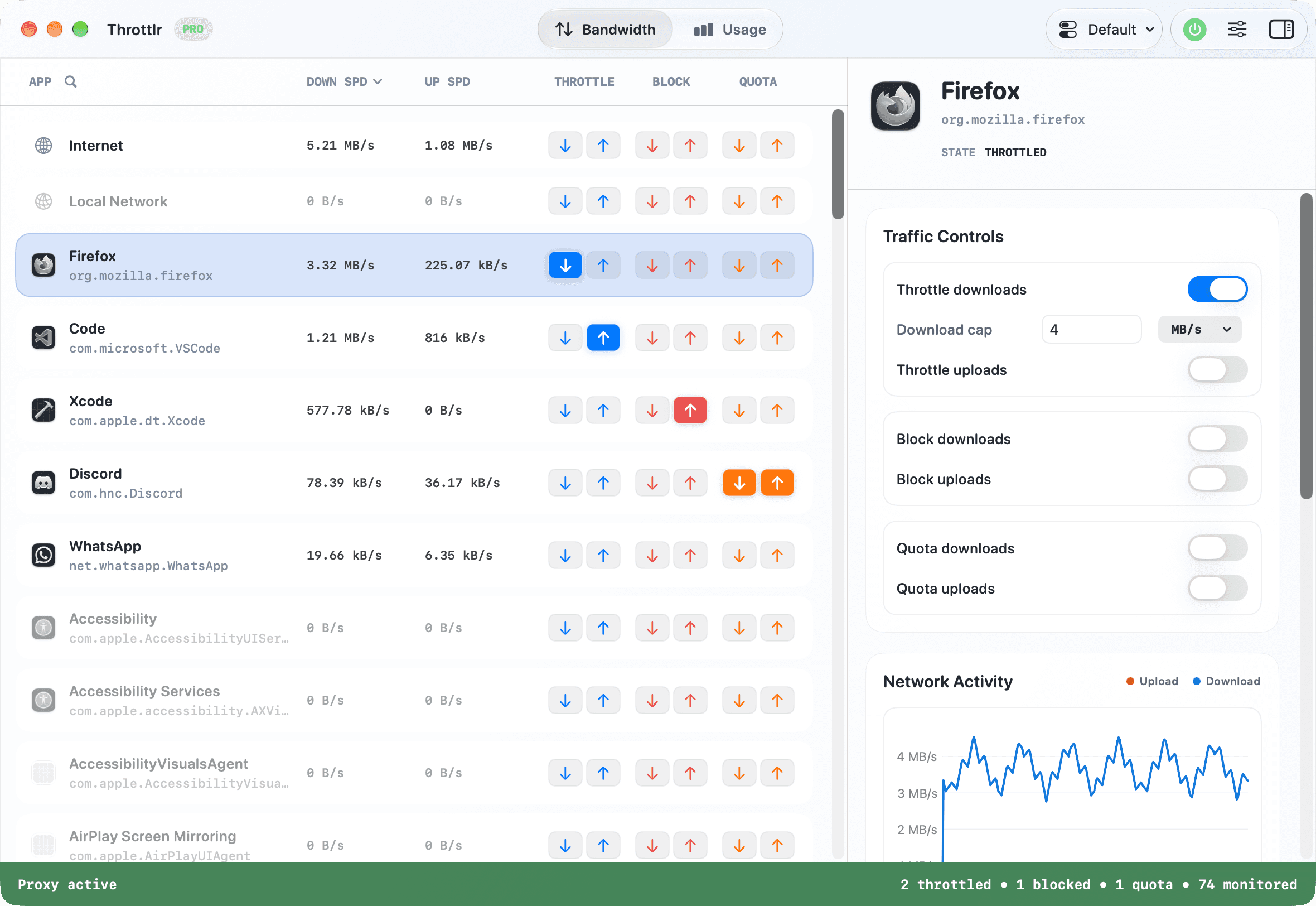
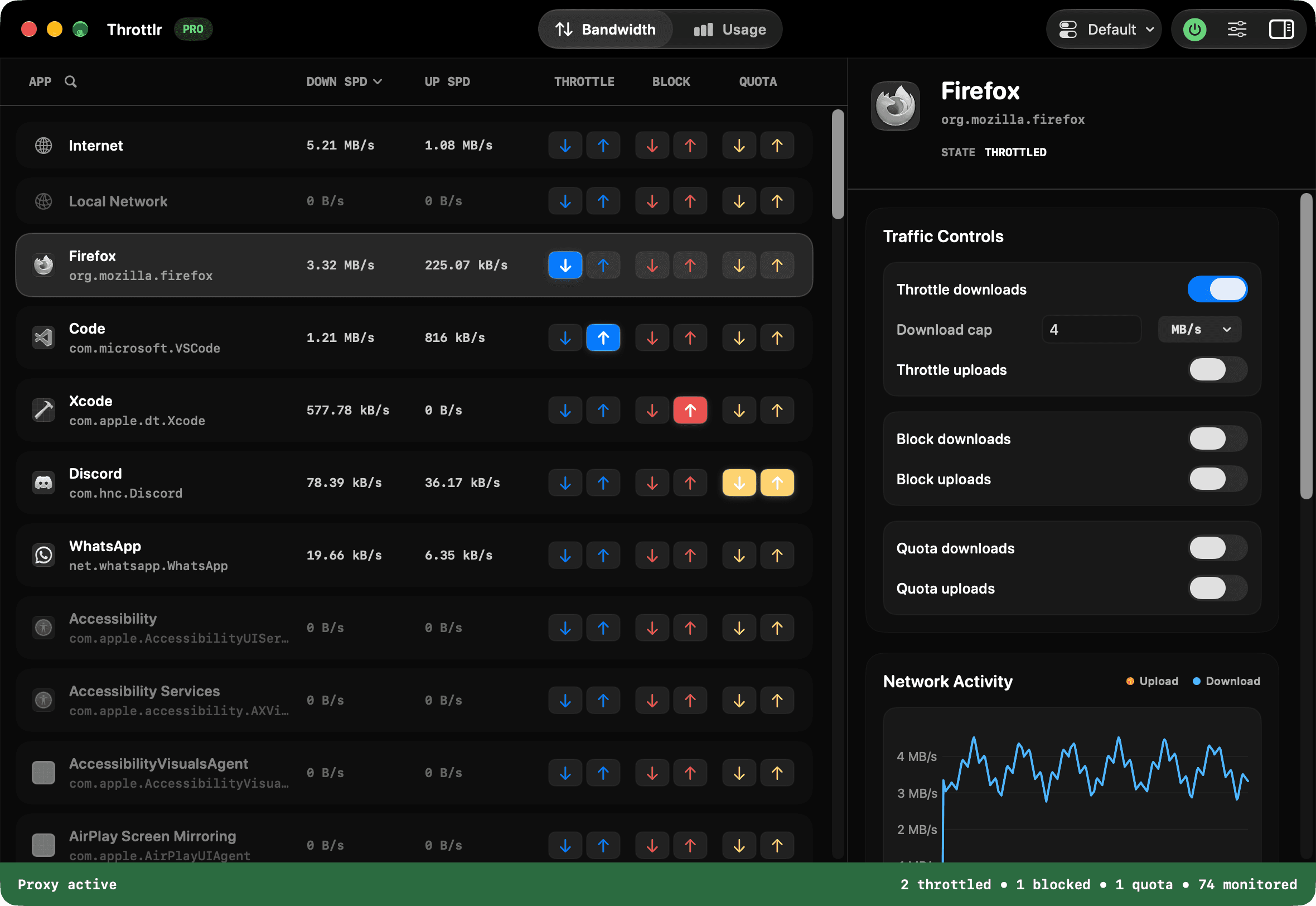
How to block one Mac app from the internet
The direct way to temporarily block one app from using the network on a Mac is to run Throttlr's proxy, select the app, and turn on its download and upload blocks. New connections captured for that app are stopped while other applications continue using the Mac's connection. Disable the controls from the same panel when you want to restore access.
An app-level rule applies to the traffic Throttlr attributes to that app, including grouped helper identifiers. It does not create exceptions for individual websites, domains, ports, or servers. If you need to allow one destination while denying another, use a connection-rule firewall instead. If you only need to stop one transfer from dominating the connection, throttling is usually less disruptive than blocking.
Throttlr also presents Internet and Local Network as separate aggregate targets. Those targets let you control broad traffic scopes independently, but they are different from an app-level rule: blocking one selected app can affect that app's captured internet and local-network flows, while other apps remain available unless you apply a broader scope rule.
Why the built-in macOS firewall is not an outgoing app blocker
The firewall in macOS is designed primarily to control incoming connections: traffic initiated by another computer that is trying to reach an app or service on your Mac. Its settings can block incoming connections, allow signed software, and enable stealth mode. Those controls are useful when you run file sharing, remote access, a local server, or another service that accepts connections.
That is different from stopping an app on your Mac from initiating an outgoing connection. A sync client uploading files, an updater downloading a release, or an application sending a request to its own service is creating outbound traffic. Changing the built-in firewall's incoming-app list is therefore not a general solution for preventing that activity.
Apple documents the firewall as protection from unwanted incoming connections. For outgoing per-app control, you need a Network Extension-based traffic controller or an application firewall designed for outbound rules. Throttlr focuses on monitoring, bandwidth caps, and temporary directional blocks rather than prompting for every new destination.
Blocking versus throttling
Blocking and throttling solve different problems. A block is a hard stop: blocked uploads cannot leave and blocked downloads cannot reach the app through captured flows. Use it when you are testing offline behavior, need to halt a transfer, or want an app to remain disconnected until you deliberately restore access.
A throttle lets traffic continue at a controlled rate. This is normally the better choice when a backup, cloud sync, game update, or browser download should keep progressing without consuming the whole connection. Separate upload and download controls matter because saturated upload capacity can disrupt calls and interactive work even when download speed looks normal.
Start with a throttle when continuity matters, then use a block if the app must make no further progress. For an offline test, block both directions. For a one-direction experiment, such as observing how an app handles failed uploads while it can still receive responses, control only the relevant direction and verify the result in the live traffic view.
Block and restore an app's network access
- Install Throttlr, open it, and start the proxy. Approve its Network Extension in System Settings when macOS asks; the proxy cannot inspect or control flows until that permission is active.
- Confirm that Pro or the Pro trial is active. Without a current Pro entitlement, Throttlr enforces only one rule, at 1 MB/s, and saves rules on other apps until Pro returns.
- Start the target application and generate some network activity so it appears in the app list. If a helper or background service owns the transfer, it may appear as a separate row.
- Select the application and open its Blocking controls. Enable both download and upload blocking when you want the app to behave as though its captured network access is unavailable.
- Quit and reopen the application if Throttlr warns that it was already running. New connections then start under the current proxy provider instead of remaining on an older path.
- Repeat the action that normally uses the network and watch the app row and Internet total. Test a fresh request rather than relying on content that may already be cached.
- Disable both blocks to restore access. Retry the request and confirm traffic resumes before removing any other troubleshooting changes.
Compare ways to control app traffic on macOS
The right tool depends on whether you need an incoming firewall, detailed destination rules, a simple app-level block, bandwidth shaping, or realistic adverse-network testing. These products overlap, but they are not interchangeable.
| Tool | Traffic direction | Rule scope | Bandwidth control | Best for |
|---|---|---|---|---|
| macOS Firewall | Incoming connections | Incoming access to apps and services | No | Protecting services that accept connections to the Mac |
| Throttlr | Captured uploads and downloads | Apps, background services, Internet, or Local Network targets | Separate upload and download caps | Monitoring, limiting, or temporarily stopping app traffic |
| Little Snitch | Incoming and outgoing rules | Apps, servers, domains, ports, protocols, and rule groups | Not positioned as a bandwidth limiter | Detailed connection policy and destination-level decisions |
| LuLu | Outgoing connections | A process or a specific remote destination | No | Free, open-source outgoing connection rules and alerts |
| Radio Silence | Outgoing app connections | Apps and their child processes | No | A quiet, straightforward app-level firewall |
| Network Link Conditioner | System or development-device network conditions | Network condition profiles rather than individual Mac apps | Profile-based conditioning, not per-app caps | Testing behavior under broader adverse network conditions |
Product capabilities can change. The linked official documentation is the source for each third-party row. Throttlr is not a replacement for destination-level firewall rules, and its bandwidth caps do not reproduce latency, packet loss, DNS failure, or every property of a real network.
Practical reasons to block or limit one app
- Pause a cloud sync without disconnecting the whole Mac. A temporary block can halt the captured transfer while browsers, calls, and unrelated work continue. Restore access when the connection is free.
- Stop an update during time-sensitive work. If an application or its updater starts a large transfer, block the row that owns the traffic and verify that the rate falls before continuing your call or presentation.
- Test offline and recovery behavior. Developers and QA engineers can block both directions, exercise loading and retry states, then remove the block to confirm that the app recovers without being relaunched.
- Protect a call from a bandwidth-heavy task. Prefer an upload or download cap when the background job should continue; use a block only when it is safe for the transfer to stop completely.
- Identify which process owns unexplained traffic. Use the live app rows alongside the Internet aggregate, then inspect helpers and background services before deciding which target to control.
Troubleshoot an app that still appears connected
- Verify that the proxy is running and that Throttlr's Network Extension remains enabled in System Settings. Monitoring data alone may be stale if the provider is not currently active.
- Confirm that the relevant Blocking toggles stayed enabled, and that Pro is active if you block more than one app. Block both downloads and uploads unless the test intentionally allows one direction.
- Quit the target application with Command-Q and reopen it after the proxy is active. Closing a window is not enough for an app that continues running in the Dock, menu bar, or background.
- Enable Launch at Login if you use Throttlr regularly. Starting the provider before other apps reduces the chance that long-lived connections were created outside its current session.
- Generate a fresh network request. Previously loaded pages, cached media, local files, and queued UI state can make an app look online without proving that new traffic passed through.
- Look for a helper, updater, XPC service, or signed background-service row. The visible app process is not always the process that opens the connection.
- Compare the selected row with the Internet total. The total includes captured non-local traffic from macOS services, helpers, newly launched apps, and recently closed apps that may not match the row you blocked.
- If the workflow uses a printer, NAS, development server, or another LAN device, check the Local Network target as well. Internet and local destinations are classified separately at the aggregate level.
- Remove the block and retry once troubleshooting is complete. Confirming that the same request resumes helps distinguish a successful block from an unrelated server or application failure.
Understand helpers, background services, and existing connections
Many Mac applications delegate networking to helper executables, login items, XPC services, updaters, or other background processes. Throttlr groups helper bundle identifiers with a parent app when it can identify that relationship. Independently signed services can appear as their own targets, and controlling the main app row may not control traffic owned by a separate service row.
Both Throttlr editions can show signed background services after their traffic has been observed. The direct-download edition can inspect running processes for richer service metadata. Because of App Store sandbox restrictions, the App Store edition asks you to quit an affected app manually before Throttlr reopens it; the direct edition can normally perform the quit-and-reopen workflow for you. In either edition, the traffic controls remain installed during the restart.
Connections that existed before the current proxy provider started are a separate issue. Apple's Network Extension APIs cannot always move those older connections under a newly started provider. Limits or blocks may affect some captured flows while an older flow continues. Quit and reopen the application, or restart an independently running background service, so it establishes fresh connections under the active provider.
Treat the Internet total as an independent safety check, not as the mathematical sum of the visible application rows. If the total keeps moving after an app row stops, another app, helper, system service, or unmatched process may own that traffic.
Frequently asked questions
Can the built-in macOS firewall stop an app from connecting out?
Not as a general outgoing-app control. Apple's Firewall settings focus on incoming connections to apps and services on your Mac. Use an outbound application firewall or a traffic controller such as Throttlr when the app itself initiates the connection.
Should I block uploads, downloads, or both?
Block both directions for the closest approximation to taking the app offline within captured traffic. Block only one direction when the behavior under test requires the other direction to remain available, and verify the result in the live traffic view.
Will blocking one app disconnect the rest of my Mac?
An app-level rule targets traffic attributed to that app and its grouped helpers. Other apps continue normally unless you also block an aggregate Internet or Local Network target. A separately identified helper or service may require its own rule.
Why can an app still show old content after I block it?
The content may be cached or already loaded, and an existing connection may predate the active proxy session. Try a fresh request after quitting and reopening the app under the running provider before deciding that the block failed.
Does Throttlr replace Little Snitch or Network Link Conditioner?
No. Throttlr is designed for per-app monitoring, directional bandwidth caps, and temporary blocks. Little Snitch provides detailed destination-level firewall rules, while Network Link Conditioner models broader network conditions. Choose the tool that matches the test or policy you need.
Need help with setup, existing connections, or licensing? Read the Throttlr FAQ.
Related guides
Mac users
Set a data quota per app
Set a download, upload, or combined data quota for one Mac app, then block or slow its traffic when the allowance is reached.
Mac users
Pause cloud sync without disconnecting
Pause or slow one cloud-sync app on your Mac while browsers, calls, and other applications stay connected.
Mac users
Limit bandwidth per app
Learn how to limit download and upload bandwidth for an individual app on macOS without slowing every other app.