
Guide for Mac users
How to Pause Cloud Sync on Mac Without Turning Off Wi-Fi
To pause cloud sync without disconnecting your Mac, first use the sync app's own pause control when it has one. If you need a network-level stop, select the cloud app or the helper that owns its traffic in Throttlr and block both directions. Use a bandwidth cap instead when the sync should keep progressing in the background.
Published
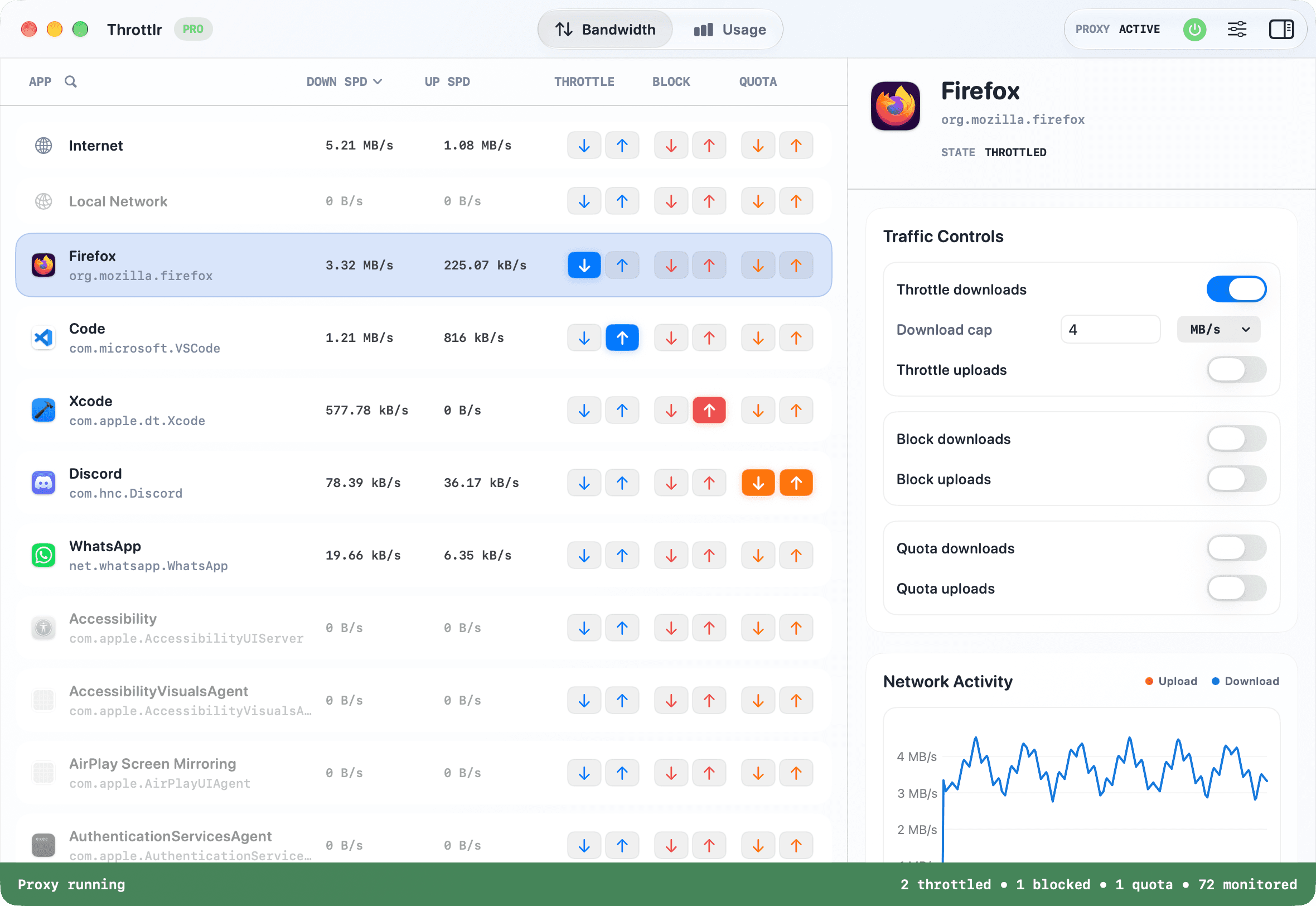
Pause one cloud-sync app while your Mac stays online
Turning off Wi-Fi stops everything: calls, browsers, messages, software development tools, and every other app that needs the network. To interrupt only cloud sync, control the sync client itself rather than disconnecting the Mac or blocking the aggregate Internet target.
Start with the cloud provider's own Pause, Snooze, or Quit command when one is available. A native pause lets the client finish or record its work in the way its developers intended. Use a network-level block when the app has no suitable pause control, its pause is not stopping the transfer you care about, or you need to reproduce a temporary loss of connectivity.
A Throttlr block stops captured upload and download flows for the selected application or service. The sync client may report that it is offline, queue retries, or display an error; a block is therefore not identical to its native pause feature. If the files should continue syncing at a lower rate, set upload and download caps instead of stopping traffic completely.
Choose between pausing, throttling, and blocking
- Use the sync app's own pause control for routine pauses. This is the least disruptive option and normally preserves the client's internal queue and status clearly.
- Throttle the sync app when a backup or upload should continue without competing with a call, stream, or interactive work. Upload caps are especially useful because a saturated upstream connection can make calls unstable even when downloads appear normal.
- Block both directions when you need a hard, temporary interruption or want to test how the client recovers. The app cannot exchange captured data until you remove the blocks.
- Block one direction only for a deliberate test. Cloud-sync protocols often need requests and responses in both directions, so a one-way block may produce retries or behavior that is harder to interpret than a complete interruption.
Find the process that owns the sync traffic
The application whose icon you recognize is not always the process transferring files. Cloud clients commonly use login items, helper executables, file-provider extensions, updaters, or signed background services. Some helpers are grouped with the parent application; independently identified services can appear as separate rows.
Open Throttlr before starting the transfer, then create an unmistakable test: add a moderately sized file to the sync folder or wait for a known queued upload. Watch which app or service row shows sustained upload or download activity. Compare that row with the Internet aggregate, but do not control the aggregate target when your goal is to affect only one sync client.
Be particularly careful with iCloud. It is integrated into macOS rather than represented by one conventional desktop app, and its services can support iCloud Drive, Photos, and other Apple features. Prefer Apple's own settings for routine iCloud changes, and do not block an unfamiliar system service until you understand what else depends on it.
Temporarily stop the cloud transfer with Throttlr
- Open Throttlr, start its proxy, and confirm that the Network Extension is enabled in System Settings.
- Confirm that Pro or the Pro trial is active. Free mode monitors traffic, while blocking and throttling require Pro.
- Start the cloud client and generate or identify an active transfer so you can find the application, helper, or background-service row responsible for it.
- Select that row and enable both download and upload blocking. Avoid the Internet target unless you intentionally want to stop non-local traffic across the entire Mac.
- Quit and reopen the client if Throttlr warns that it was running before the current proxy session. This gives the client fresh connections that the provider can capture and control.
- Watch the selected row and the Internet total. Allow a short moment for buffered activity to settle, then confirm the transfer no longer advances inside the cloud client.
- Keep browsers, calls, and another network-dependent app open long enough to confirm that the rest of the Mac remains connected.
Examples for common sync workloads
- Dropbox, OneDrive, and Google Drive desktop clients may expose their own pause option. Prefer it for an ordinary pause; use Throttlr when you need a directional cap, a network-level interruption, or visibility into a helper that keeps transferring.
- Photo libraries and media uploads can consume upstream capacity for long periods. An upload cap usually protects calls better than a full block while still allowing progress overnight or in the background.
- Backup tools may use a persistent service rather than the visible settings app. Generate a known backup task, identify the active service row by its traffic, and retain the rule only if you are confident it belongs to that workload.
- Development folders can trigger repeated sync while builds generate files. Pause the sync client natively or block its identified process during the build, then restore it and check the queue after generated output has settled.
- Large downloads from a cloud drive may be owned by a file-provider helper. Confirm the active row instead of assuming the Finder window or cloud client's main process owns the transfer.
Keep calls and other apps connected
Select the cloud application or its identified service, not Internet, when only that workload should stop. App-level controls apply to traffic attributed to the selected target and its grouped identifiers. Other apps continue using the network unless they depend on the blocked process or you also apply a broader Internet or Local Network rule.
If the goal is protecting a call, begin with an upload limit instead of a block. Reduce the cap while watching call quality and the sync client's progress. There is no universal value because the available upstream capacity, call service, and sync workload differ on every connection.
A cloud app may also talk to a NAS or local development server. An app-level block can affect its captured local-network flows as well as internet flows. Test the exact workflow you care about, especially if the same client communicates with both cloud storage and devices on your LAN.
Troubleshoot sync traffic that continues
- Make sure the Throttlr proxy is running, its Network Extension is approved, Pro is active, and both blocking directions remain enabled.
- Quit the cloud client with Command-Q and reopen it after the proxy starts. Closing a window or dismissing a menu-bar panel may leave the process and its existing connections running.
- Look for a helper, updater, file-provider process, or signed background service with its own traffic. A separately identified service may need its own control.
- Enable Launch at Login so Throttlr starts before cloud clients that automatically open when you sign in. Long-lived connections created first may remain outside a later proxy session.
- Check whether the client is showing cached status or processing local file changes rather than transferring bytes. Use the live rate and a fresh test file to distinguish network activity from local work.
- Compare the app row with the Internet total. Continuing aggregate traffic may belong to another application, a macOS service, or an unmatched helper rather than the cloud client you blocked.
Restore sync and verify the queue
Disable both blocks when you are ready to resume. The cloud client will usually reconnect and work through its queue, but its exact recovery behavior belongs to the client. Open its status view and confirm that pending files continue rather than assuming every retry succeeded.
Check for conflict copies, failed items, account warnings, or files that were edited on another device during the interruption. A Throttlr block does not instruct the client to delete files, but the cloud service still decides how simultaneous edits and synchronization conflicts are resolved.
If you used a bandwidth limit instead, raise or disable the cap and confirm that the live rate changes. Remove controls you no longer need so a forgotten rule does not surprise you during the next large transfer.
Cloud-sync questions
Will pausing one cloud app disconnect my browser or call?
Not when you control only the cloud app or the service that owns its traffic. Other apps remain connected unless they depend on that process or you also block the aggregate Internet or Local Network target.
Is blocking cloud sync the same as using the app's Pause button?
No. A native pause is coordinated by the sync client. A network block interrupts captured traffic, so the client may appear offline, retry requests, or report an error until access returns.
Should I block cloud sync during a video call?
Use an upload cap first when the sync should keep progressing. Block it only when the transfer can safely stop and a hard interruption is preferable to slower progress.
Why is the cloud app quiet while Internet still shows traffic?
The Internet target includes all captured non-local traffic, including other applications, macOS services, helpers, and recently closed apps. It is not expected to equal the selected cloud app's row.
Need help with setup, existing connections, or licensing? Read the Throttlr FAQ.
Related guides
Mac users
Block an app's internet access
Temporarily block download and upload traffic for one macOS app while keeping other apps and local-network traffic available.
Mac users
Limit bandwidth per app
Learn how to limit download and upload bandwidth for an individual app on macOS without slowing every other app.