
Guide for Mac users
How to Check Data Usage by App on Mac
To check data usage by app on Mac, start Throttlr's proxy and open the Usage dashboard. You can review upload, download, and combined totals for each app, compare months or years, and filter internet or local-network traffic.
Published
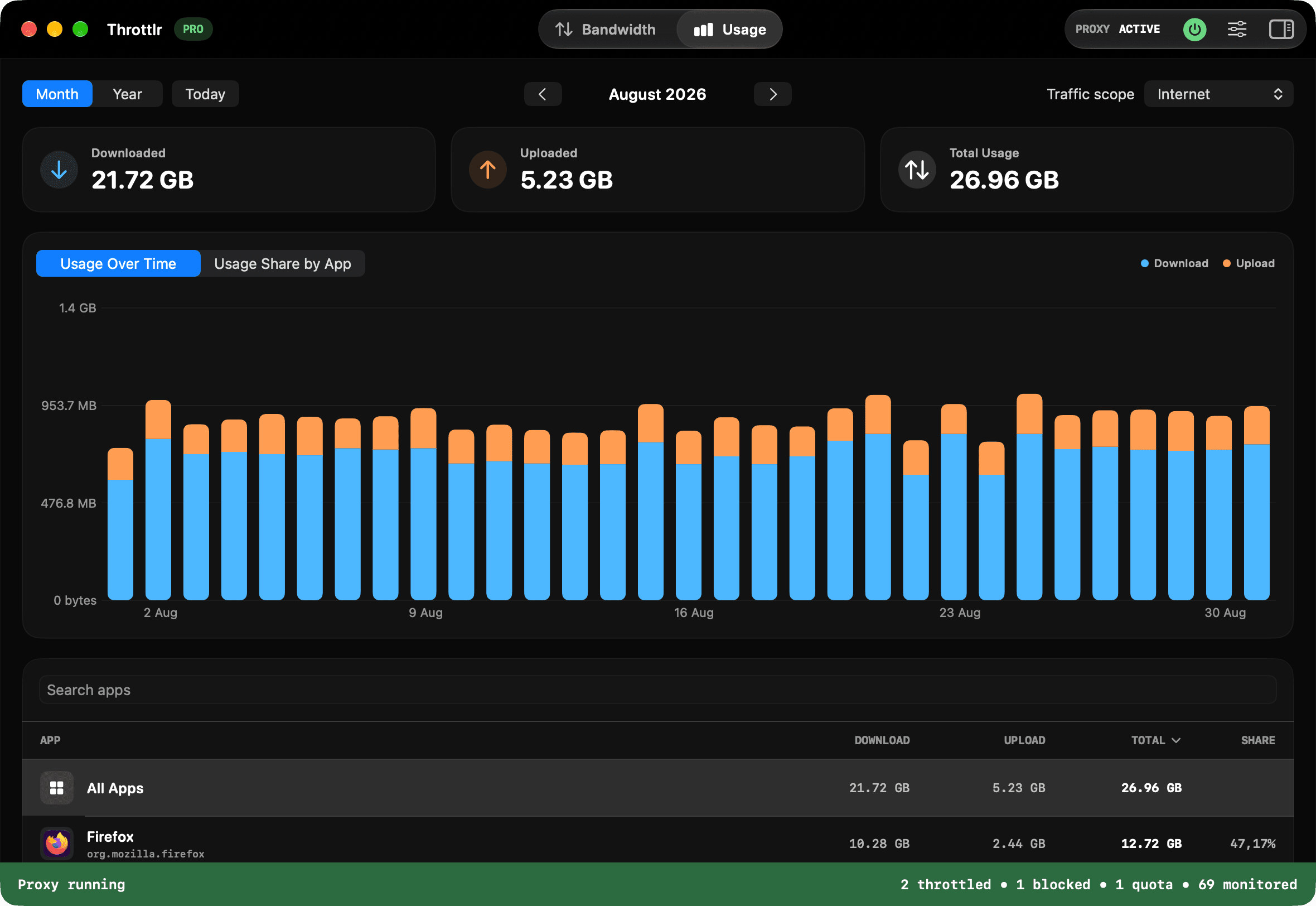
Check data usage for your Mac apps
- Open Throttlr and start its proxy. Approve the Network Extension in System Settings if macOS asks.
- Leave the proxy running while you use the apps you want to measure. Throttlr records daily totals only for traffic captured while the proxy is active.
- Open the Usage tab in the Throttlr dashboard.
- Choose Month or Year, then use the arrow buttons to move between periods. Select Today to return to the current period.
- Choose Internet, Local Network, or All from the traffic-scope menu.
- Review the app ranking, or search for an app by name. Select an app to focus the totals and chart on it.
Understand the usage totals
The summary cards separate downloaded and uploaded data and show their combined total. Downloaded data includes content moving toward an app, such as web pages, media, updates, and incoming cloud files. Uploaded data includes backups, outgoing sync, calls, and files sent from the Mac.
These totals measure transferred data, not connection speed. Use the Bandwidth tab when you need to see an app's current upload or download rate. Use the Usage tab when you want to understand how traffic accumulated over days, months, or years.
Find which apps use the most data
The ranking lists each identified app or service with its download, upload, total usage, and share of the selected period. Sort the columns to find the largest downloaders, uploaders, or overall users. Search is useful when the list is long or you already know which app you want to inspect.
Select an app to update the summary and usage-over-time chart for that target. Switch to Usage Share by App when you want to compare how the total is divided across apps. Some transfers may appear under a helper, updater, or background service rather than the app whose window you see.
Compare monthly and yearly usage
The monthly view plots one bucket for each day, which helps identify a particular day with unusual activity. The yearly view groups usage by month so you can see longer trends without examining every day separately.
Move to an earlier period to compare it with the current one. Throttlr shows the history retained on this Mac, so an earlier period may be empty if the proxy was not running then or the data falls outside your retention setting.
Separate internet and local-network traffic
Choose Internet to review traffic between your Mac and non-local destinations. Choose Local Network for transfers involving devices and services on your LAN, such as a NAS, development server, or another computer. Choose All to combine both scopes.
This distinction can explain a high total that does not match your internet usage. A large local backup or file copy can transfer substantial data without using your internet connection.
Choose how long to keep usage history
Open Settings, select Usage, and choose a retention period of one month, three months, one year, or all history. The same screen shows how much storage the history uses and provides a Clear History button.
Daily per-app totals are stored locally on your Mac. Throttlr records them only while its proxy is running. Clearing history removes the saved totals, and data older than the selected retention period is pruned.
Troubleshoot missing or unexpected usage
- Confirm that the proxy is running. The Usage dashboard displays a notice when recording is paused.
- Restart the proxy if Throttlr says its Network Extension must be updated before usage recording can begin.
- Generate a fresh transfer. Cached content or local processing may not create new network traffic.
- Check the Internet, Local Network, and All scopes if the transfer does not appear where you expected.
- Look for a helper, updater, file-provider extension, or background service that may own the connection.
- Check the selected month or year and your retention setting when an older period is empty.
Act on what you find
Usage history is included in Throttlr's Free plan. If an app is transferring more than expected, Throttlr Pro can set a data quota, apply separate upload and download speed caps, or temporarily block traffic for that app.
Use a quota when the app should receive a defined allowance, a bandwidth cap when it may continue at a lower rate, or a block when its captured traffic should stop. Each control serves a different purpose, so start with the least disruptive option that addresses the problem.
Mac app data usage questions
Does Throttlr show data used before it was installed?
No. Throttlr records usage only after its Network Extension is installed and the proxy is running. It cannot reconstruct traffic from before recording began.
Is usage history available in the Free plan?
Yes. Daily per-app usage history with monthly and yearly views is included in the Free plan. Throttling, blocking, and data quotas require Pro or an active Pro trial.
Why does an app show no usage while it is open?
An open app may not be transferring data, may be using cached content, or may send traffic through a helper or background service. Create a fresh network request and check related service rows.
Is usage history the same as a data quota?
No. Usage history reports recorded traffic over time. A data quota is a Pro control that counts traffic against an allowance and then blocks or throttles the selected directions when the allowance is reached.
Need help with setup, existing connections, or licensing? Read the Throttlr FAQ.
Related guides
Mac users
Set a data quota per app
Set a download, upload, or combined data quota for one Mac app, then block or slow its traffic when the allowance is reached.
Mac users
Limit bandwidth per app
Learn how to limit download and upload bandwidth for an individual app on macOS without slowing every other app.
Mac users
Pause cloud sync without disconnecting
Pause or slow one cloud-sync app on your Mac while browsers, calls, and other applications stay connected.
Mac users
Block an app's internet access
Temporarily block download and upload traffic for one macOS app while keeping other apps and local-network traffic available.