
Guide for Mac users
How to Set a Data Usage Limit for Any Mac App
To limit how much data one Mac app can use, select it in Throttlr, choose whether downloads, uploads, or both count, and enter an allowance. You can reset usage manually or on a daily, weekly, or monthly schedule, then block or throttle the app when it reaches the limit.
Published
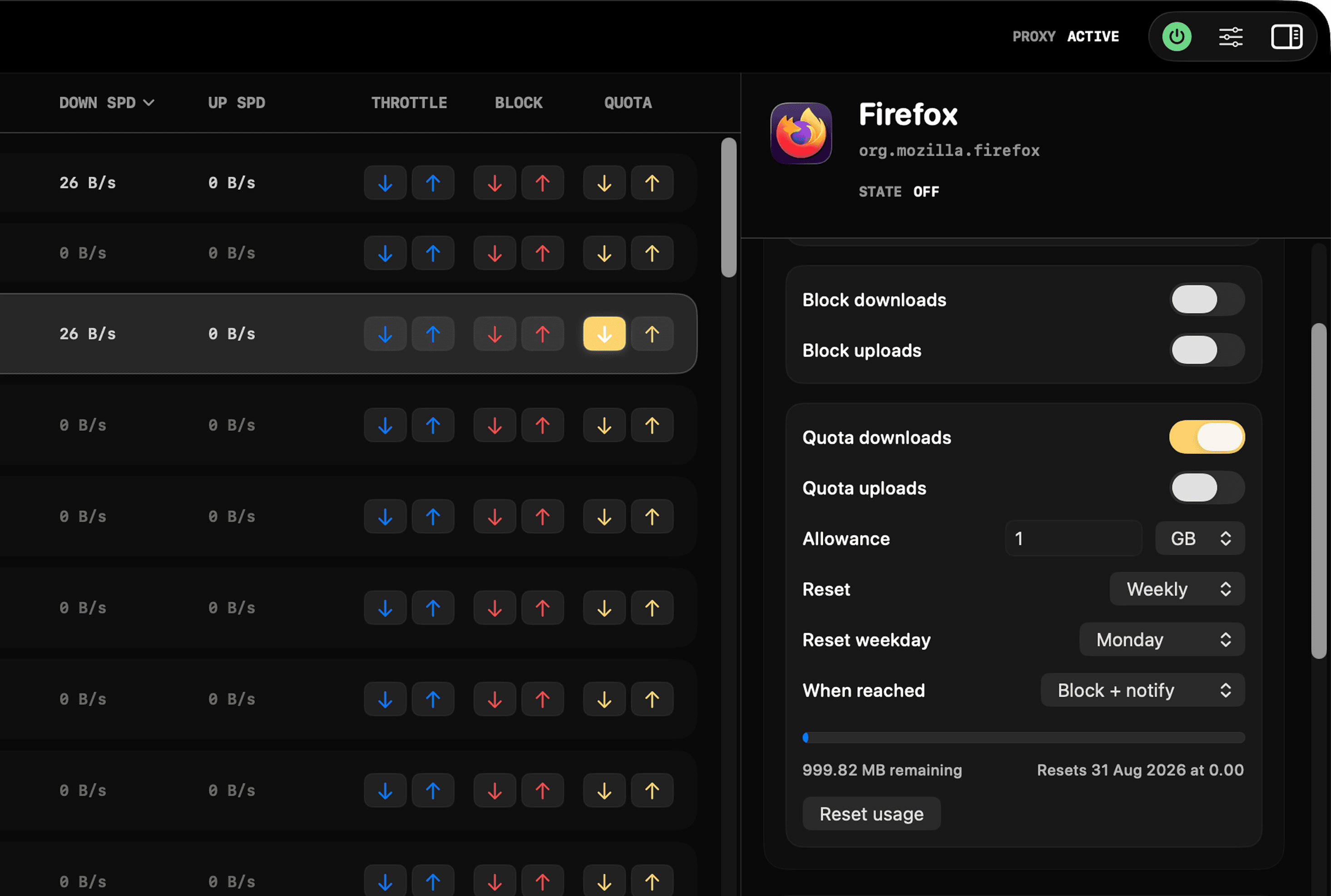
How per-app data quotas work
A data quota measures captured traffic for a selected app against an allowance you set. It can count downloads, uploads, or both. Other apps keep their own settings and do not count toward that app's quota unless you configure them separately.
When the allowance is reached, Throttlr can block the selected directions or apply separate post-quota download and upload speed caps. The dashboard shows remaining usage while the quota is active, and Throttlr sends a notification when the limit is reached.
A quota controls total transferred data rather than the rate at every moment. Use a regular bandwidth cap when an app should always stay below a specific speed. Use a quota when normal speed is acceptable until the app consumes a defined amount of data.
Set a data quota for one Mac app
- Open Throttlr, start its proxy, and approve the Network Extension in System Settings if macOS asks.
- Confirm that Pro or the 14-day Pro trial is active. Free mode monitors traffic, while data quotas require Pro.
- Start the target app and generate some network activity so you can identify the app or background service that owns the transfer.
- Select the target and enable Quota downloads, Quota uploads, or both.
- Enter the allowance and choose its unit.
- Choose no automatic reset or select a daily, weekly, or monthly schedule. Set the weekday or day of the month when the selected schedule requires it.
- Choose Block + notify or Throttle + notify. If you choose throttling, set the post-quota speed for each counted direction.
- Keep the transfer active and watch the remaining usage. Use Reset usage when you need to start the allowance again immediately.
Choose which traffic counts
Count downloads for workloads such as software updates, media downloads, and incoming cloud files. Count uploads for backups, outgoing sync, large attachments, or other transfers that primarily use upstream capacity. Select both when the allowance should cover all captured traffic for the app.
Directional quotas are useful when an app transfers very different amounts in each direction. An upload-only backup quota leaves its downloads outside the allowance, while a download-only update quota does not count the app's smaller outgoing requests.
Make sure you select the process that owns the traffic. Some apps use helpers, updaters, file-provider extensions, or independently listed background services. Generate a recognizable transfer and follow the live rate instead of relying only on the app name.
Choose a reset schedule
Use a daily reset for a recurring one-day allowance, a weekly reset for workloads that should receive a fresh budget on a particular weekday, or a monthly reset for a longer usage cycle. Leave automatic resets off when you want the quota to remain reached until you reset it yourself.
The dashboard shows the next reset for a scheduled quota. Reset usage manually when you need to clear the current count before that time, such as after testing an overflow action or starting a new transfer period early.
A quota schedule resets usage. It is not a general calendar rule for turning throttling or blocking on at a particular hour, and it does not create separate allowances for individual websites, servers, or ports.
Block or throttle when the quota is reached
Choose blocking when the transfer must stop at the allowance. If both directions count, both are blocked when the quota is reached. If only one direction counts, the quota action applies to that selected direction.
Choose throttling when the app should keep working at a lower rate after reaching the allowance. Set separate download and upload caps for the directions included in the quota. This fits a backup or sync task that may continue slowly instead of stopping completely.
The overflow action remains relevant until usage is reset manually or by the configured schedule. Test the selected behavior with a small temporary allowance before relying on it for a long transfer.
Troubleshoot quota tracking or enforcement
- Confirm that Throttlr's proxy is running, the Network Extension is enabled, and Pro or the Pro trial is active.
- Check that the quota is enabled for the direction carrying the transfer. Upload-only traffic will not consume a download-only allowance.
- Quit and reopen an app that was already running before the current proxy session so it creates fresh connections through the provider.
- Look for a helper, updater, or background service if the visible app row does not show the expected traffic.
- Generate a fresh request instead of relying on cached content, buffered data, or a transfer that has already completed.
- Check the selected reset schedule if usage cleared earlier than expected, and confirm the next reset shown in the dashboard.
- Use a small test allowance to verify the notification and overflow action, then reset usage and enter the intended allowance.
Per-app data quota questions
Can I count uploads and downloads separately?
Yes. A quota can count downloads, uploads, or both. Choose only the direction that matters when the app's other traffic should stay outside the allowance.
Can an app keep working after it reaches its quota?
Yes. Choose Throttle + notify and set post-quota speed caps. Choose Block + notify when the selected traffic should stop instead.
Can a quota reset automatically?
Yes. Quotas can reset daily, weekly, or monthly. You can also disable automatic resets and clear usage manually.
Does one app's usage count toward another app's quota?
No. Each app or service target has its own configuration. Traffic can be grouped with a parent app when Throttlr identifies a helper relationship, while an independently listed service requires its own quota.
Are data quotas available in Free mode?
No. Free mode includes traffic monitoring. Per-app data quotas, throttling, and blocking require Throttlr Pro or an active Pro trial.
Need help with setup, existing connections, or licensing? Read the Throttlr FAQ.
Related guides
Mac users
Check data usage by app
See how much data each Mac app uploads and downloads, compare monthly or yearly usage, and separate internet traffic from local-network activity.
Mac users
Limit bandwidth per app
Learn how to limit download and upload bandwidth for an individual app on macOS without slowing every other app.
Mac users
Block an app's internet access
Temporarily block download and upload traffic for one macOS app while keeping other apps and local-network traffic available.
Mac users
Pause cloud sync without disconnecting
Pause or slow one cloud-sync app on your Mac while browsers, calls, and other applications stay connected.