
Guide for Developers and QA engineers
How to Simulate a Slow Network on macOS
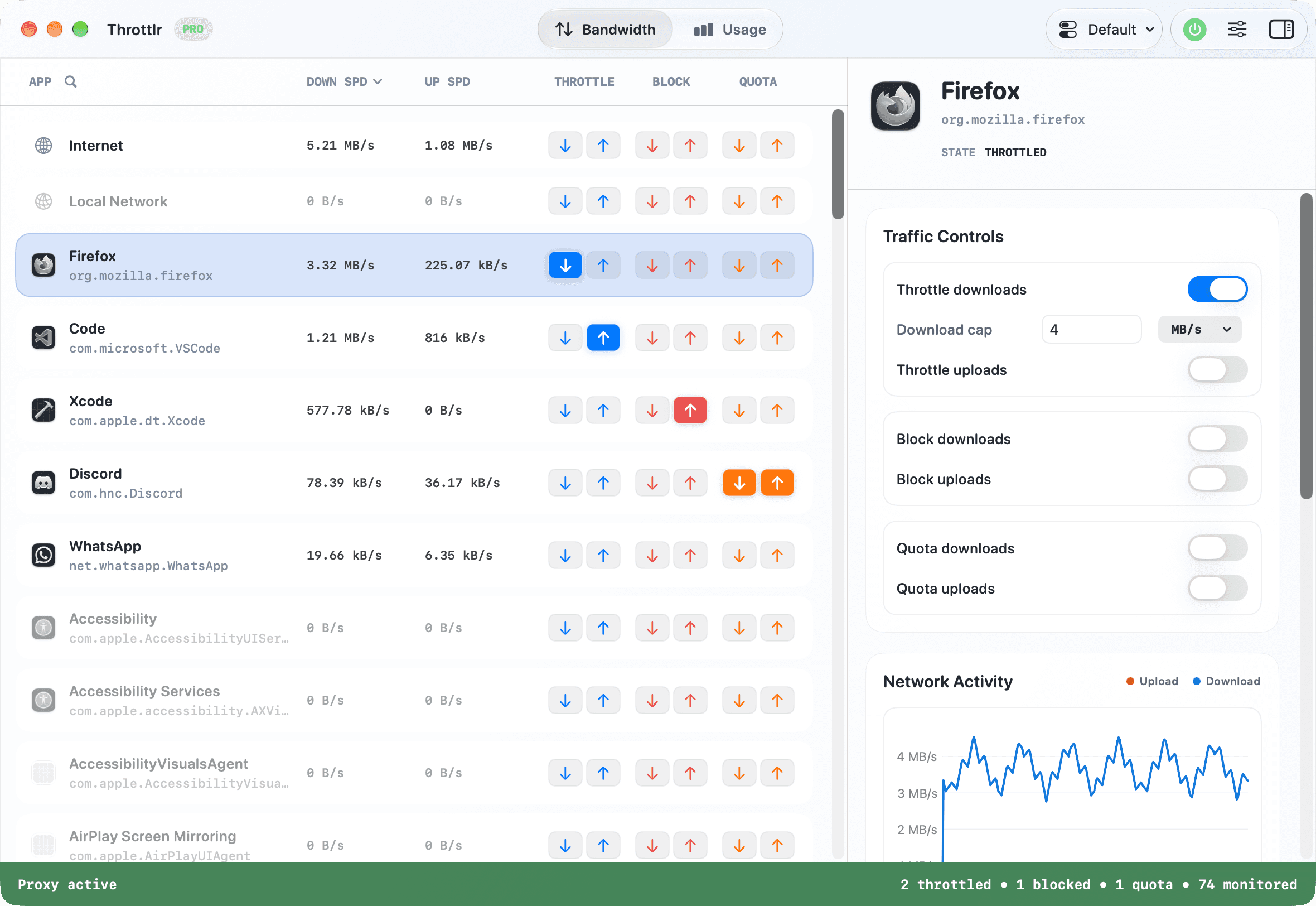
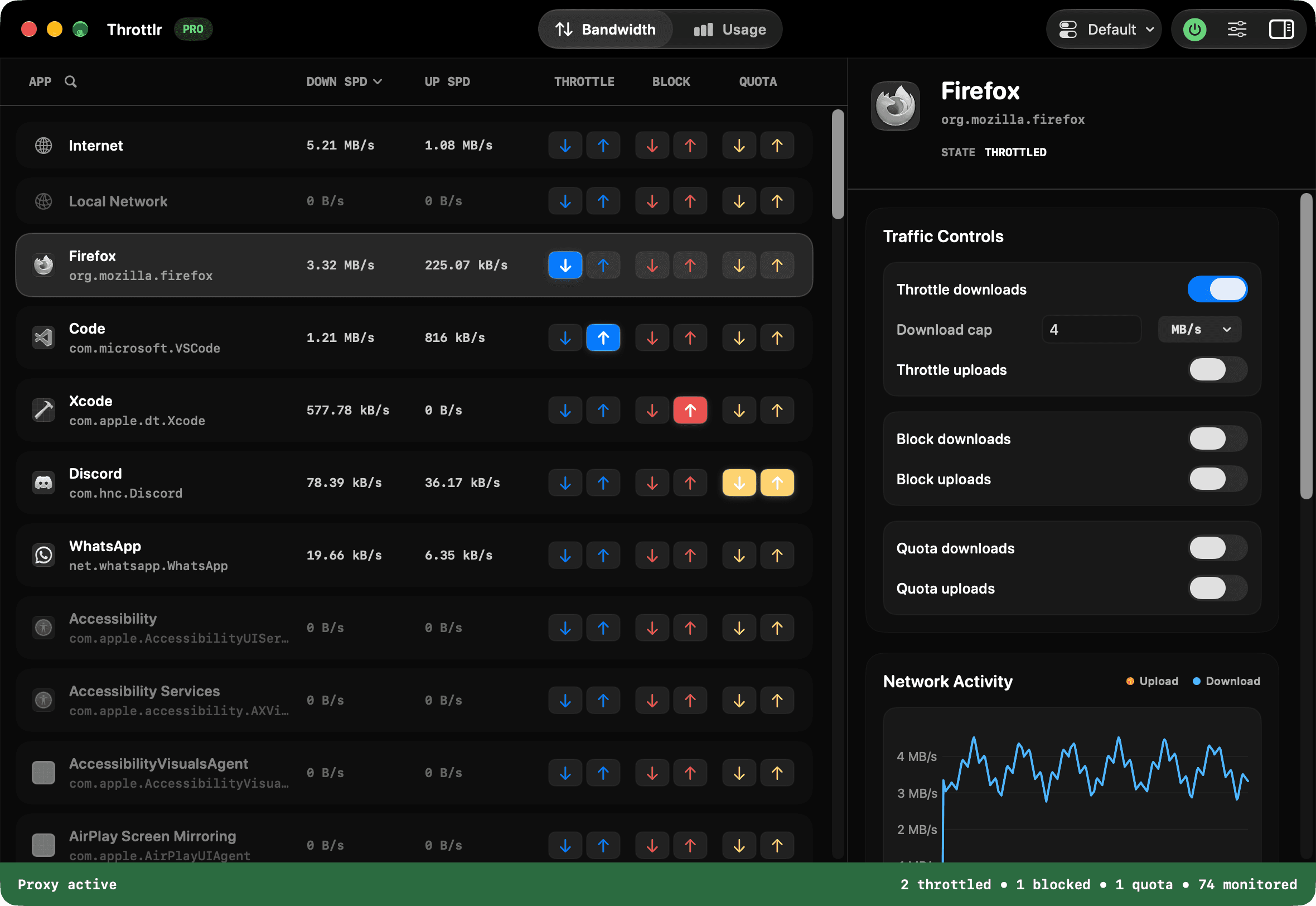
To simulate a slow network on macOS, use Throttlr to apply explicit upload and download limits to the app under test or to internet traffic across the system. Recording those values gives developers and QA engineers a repeatable condition for testing loading, retries, and offline-adjacent behavior.
Published
Choose the scope of the test
Use a per-app rule when you need to constrain only the application under test while keeping browsers, calls, and development tools at normal speed. Use an internet-wide rule when the whole Mac should share the same constrained connection.
Throttlr separates local-network traffic from non-local internet traffic. Decide whether local services are part of the scenario before starting, especially when the app talks to a development server or device on your LAN.
Create a repeatable slow-network test
- Start Throttlr's proxy before launching the application under test.
- Select the app or the Internet target, depending on the test scope.
- Set explicit download and upload limits and record both values in the test case.
- Launch the workflow from a clean state and observe loading, progress, retry, and error behavior.
- Repeat with the same limits, then test a stricter profile or block traffic completely to exercise recovery.
Scenarios worth checking
- Initial loading when responses or assets arrive slowly.
- Uploads when upstream bandwidth is much lower than download bandwidth.
- User actions repeated while a request is still pending.
- Progress indicators, timeouts, retries, and cancellation.
- Recovery after a block is removed or the bandwidth limit is raised.
Understand the boundaries
Bandwidth limits reproduce constrained throughput; they do not claim to reproduce every network property such as latency, packet loss, or DNS failure. Document the scenario as a bandwidth-constrained test rather than treating it as a complete model of a particular mobile or remote network.
Connections opened before the proxy provider started may not be captured. Keep Launch at Login enabled for routine testing, or quit and reopen the target app after starting Throttlr so its connections enter through the provider.
Need help with setup, existing connections, or licensing? Read the Throttlr FAQ.
Related guides
Mac users
Limit bandwidth per app
Learn how to limit download and upload bandwidth for an individual app on macOS without slowing every other app.
Mac users
Block an app's internet access
Temporarily block download and upload traffic for one macOS app while keeping other apps and local-network traffic available.