
Product update
See where every app connects in Throttlr 1.8.0
Throttlr 1.8.0 adds a Connections tab that shows every host and address each app connects to, who owns it, and where it is on a world map. With Pro, you can block, throttle, or set a quota on traffic to a specific host.
By Throttlr ·
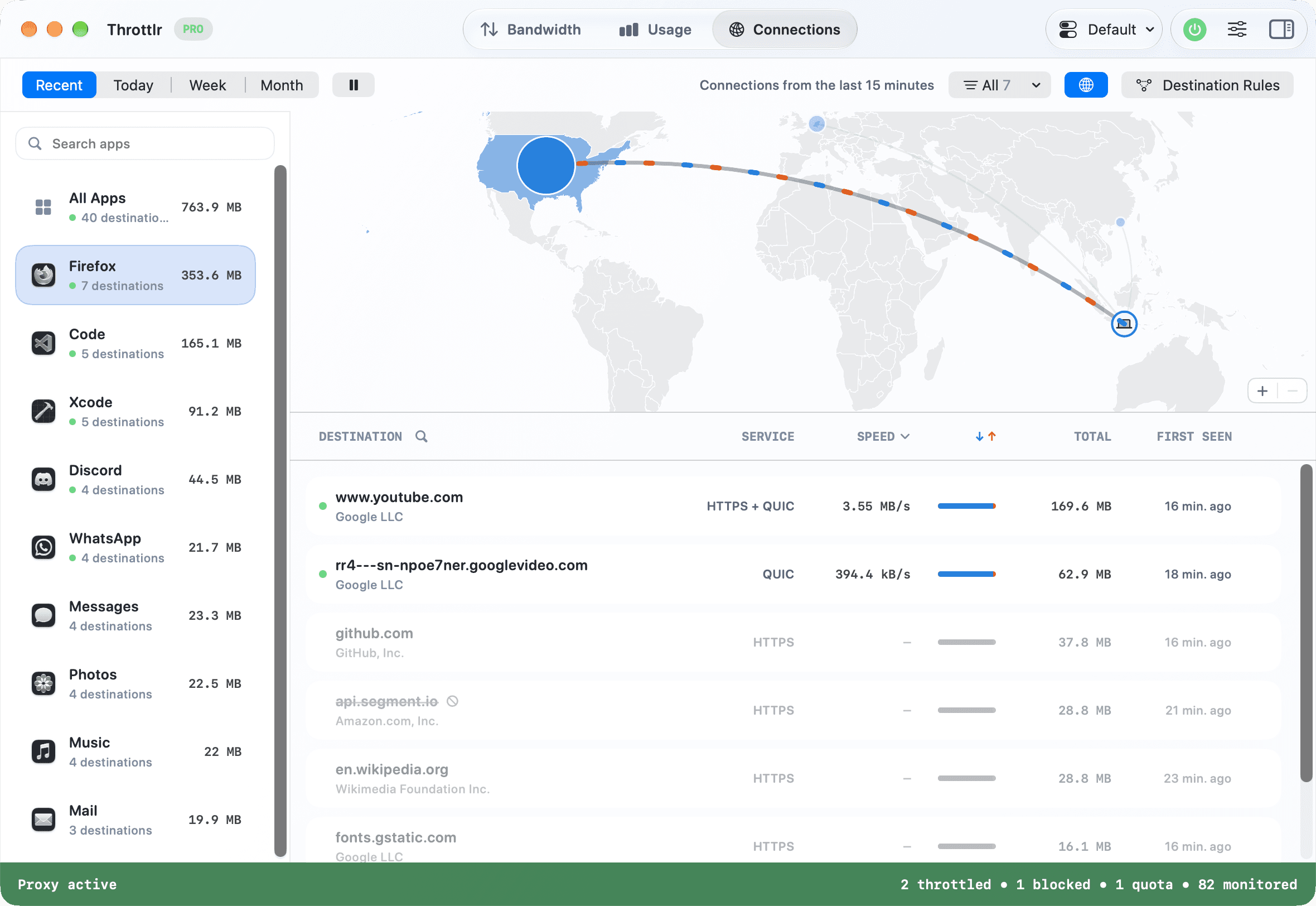
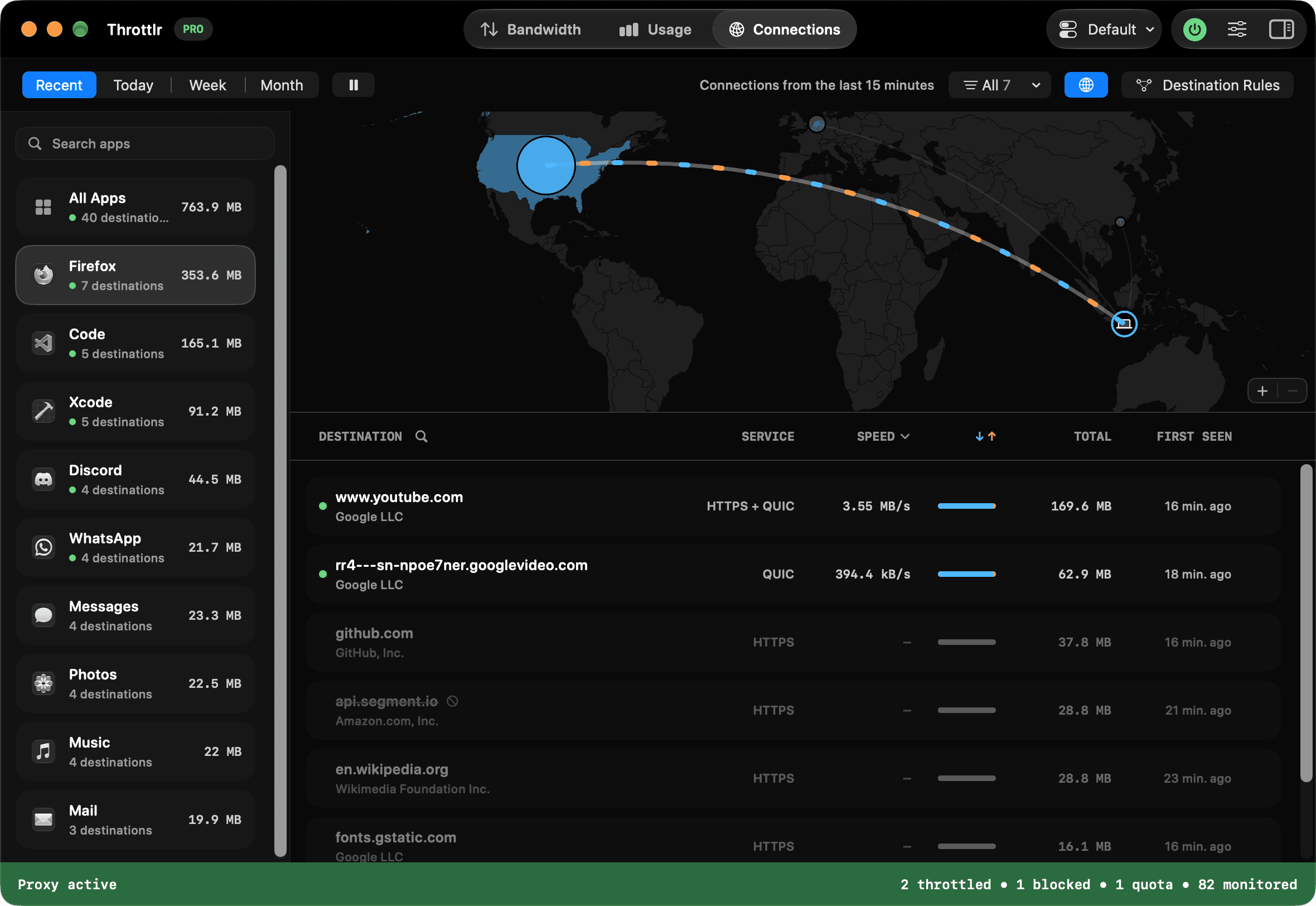
Knowing how much data an app uses is only part of the picture. Throttlr 1.8.0 adds a Connections tab that shows where that data goes: every host and address each app connects to, with its traffic and live speed, and a world map of where it all goes.
The Connections tab
Open Connections in the dashboard to see each destination an app has talked to. View the last 15 minutes, or switch to today, this week, or this month. Use the arrows to step back to earlier days, weeks, and months, or click the date to jump straight to one.
Filter the list to active, ruled, or blocked destinations, or search by host or address. You can group connections by network or by country, switch to compact rows, or pause live updates while you look through the list.
An app's details now show its recent connections too. Click Show All to open them in the Connections tab.
See your connections on a map
A world map above the list shows the same destinations by country. Countries are shaded by how much data they used, and lines run between each one and your location. Download traffic moves toward you and upload traffic moves away, in the same colors as the list. In the last 15 minutes view, countries with no open connections fade out.
Hover over a country to see its traffic, how many destinations it has, and the owners that used the most data there. Click a country to filter the list to it, or pick a country from the filter menu. Pinch, scroll, or use the zoom buttons to zoom in, and drag to move around. To give the list more room, hide the map with the globe button in the toolbar.
Your location on the map comes from your Mac's region setting. To place it more precisely, right-click the map and choose Set My Location Here. The map doesn't ask for Location access and doesn't send anything over the network. Destinations on your local network, and addresses the map can't place, stay in the list but aren't drawn on the map.
Locations come from IPinfo and show where an address is used, not where its owner is based. Networks such as Cloudflare and Akamai serve the same address from many places, so their traffic can show in one country even when it came from somewhere nearer.
Connection details
Select a connection to see:
- Who owns the address and which country it's used in
- Reverse DNS and what the port is used for
- How much was downloaded and uploaded, and its speed over the last 5 minutes
- When the connection was first and last seen
- The app's code signature and any helper processes that made the connection
Owner and location lookups use IPinfo data bundled with Throttlr, so nothing is sent over the network to identify an address.
Rules for a specific host
With Pro, you can block, throttle, or set a quota on traffic to a specific host or IP address. A rule can apply to one app or to all apps. For example, you could throttle one video host without slowing down the rest of your browser, or block an analytics domain everywhere.
Right-click a connection to block it or add a rule, or open Destination Rules in the Connections tab to manage all of them. If you block something by mistake, click Undo in the message that appears. Host rules can include subdomains.
Destination rules apply on top of each app's own rule, and the stricter limit wins. Some connections, such as some QUIC traffic, don't include a host name. Those only match IP address rules.
Privacy
Connection history is stored only on your Mac, and only while the proxy is running. It has its own setting in Settings > History, where you can choose how long to keep it or clear it without touching your usage history.
After updating, restart the proxy once to start recording connections.
Also in 1.8.0
- Settings > About has a Release Notes button next to the version.
- More of the app is translated in every supported language.
- The proxy does less work for each UDP packet, which lowers CPU use during video calls, games, and other UDP-heavy traffic.
- Universal Control, AirDrop, Handoff, and Sidecar are no longer interrupted while the proxy is on.
- Connections to devices on your network over link-local addresses, such as another Mac found in Finder, now count as Local Network instead of Internet.
Availability
Throttlr 1.8.0 is available in both the direct-download and Mac App Store editions. The Connections tab is available on every plan. Destination rules require Pro. Throttlr requires macOS 15 or newer.