
Product update
Manage apps from the menu bar in Throttlr 1.6.0
The Throttlr menu bar panel is now a compact dashboard where you can search apps, change limits, and check usage without opening the main window.
By Throttlr ·
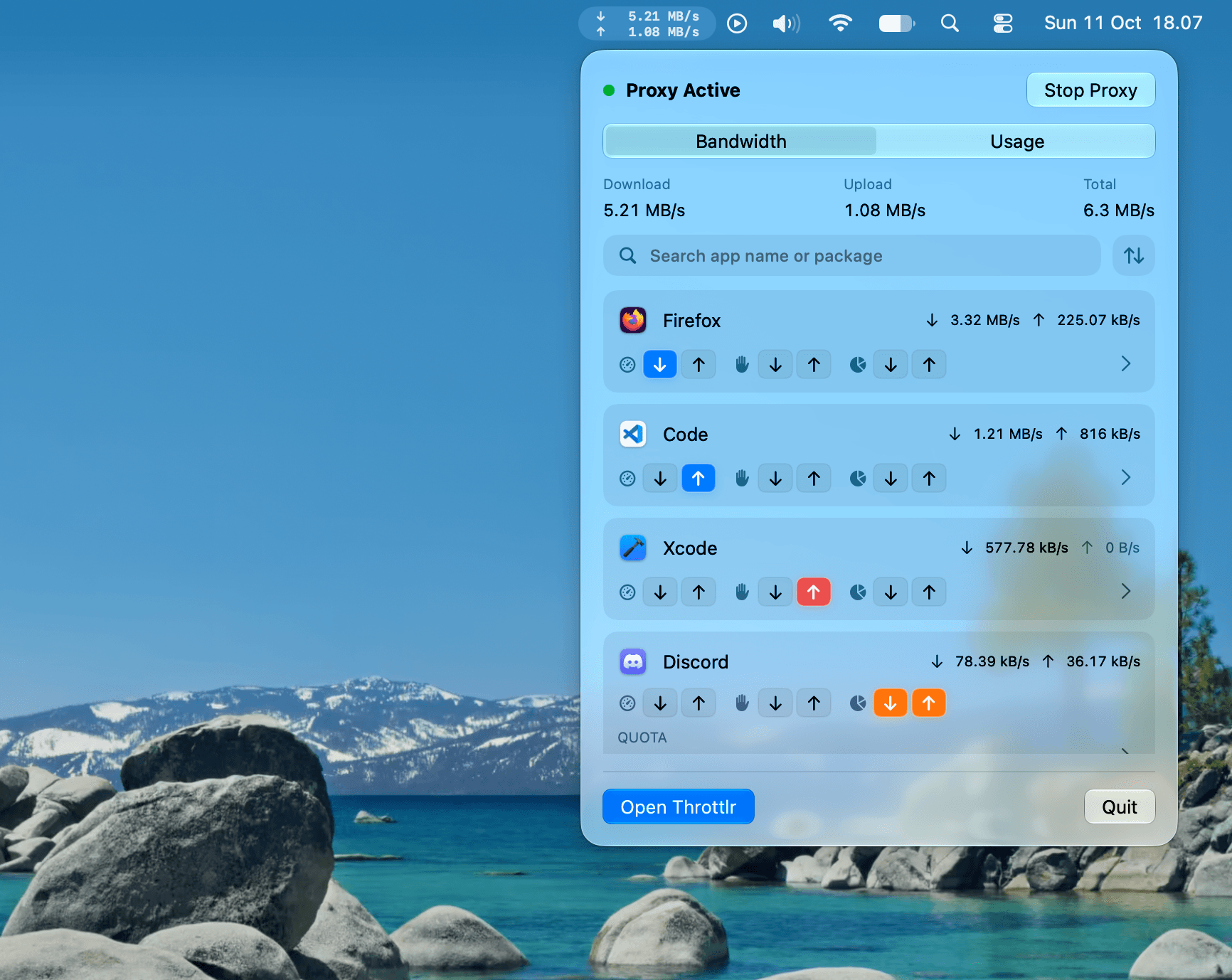
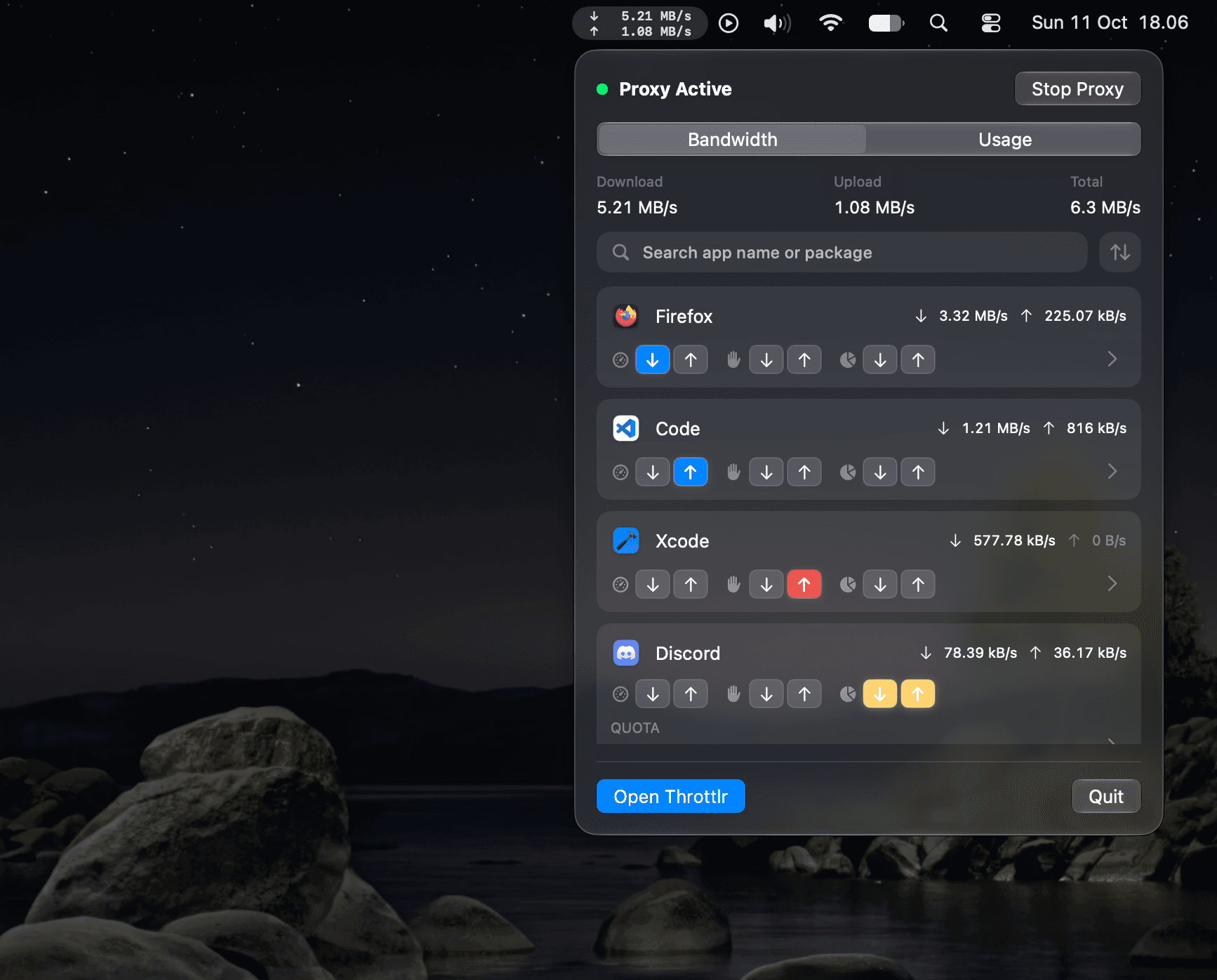
Throttlr 1.6.0 expands the menu bar panel into a compact dashboard. You can now find an app, throttle or block it, and check recent usage directly from the menu bar.
Bandwidth tab
The Bandwidth tab shows total download, upload, and combined rates at the top. Below that, each app has a card with its live speeds and buttons for throttling, blocking, and quotas in each direction.
Search by app name or bundle ID, or sort by name, download, upload, total, or active limits. Throttlr remembers your sort order the next time you open the panel.
Select the arrow on a card to open a compact detail view where you can set limits and quotas. Typed values are saved even if you close the panel before pressing Return. Choose Open in Throttlr to jump to that app in the main window.
Usage tab
The Usage tab shows totals for today, this week, or this month, with a list of the apps that used the most data. You can filter Internet and local-network traffic and search the list.
Menu bar display
A new setting colors the download and upload arrows in the menu bar when apps are throttled, blocked, or over quota. It is on by default and can be turned off in Settings > Menu Bar.
Alerts and fixes
Proxy alerts now appear even when no Throttlr window is open. While the panel is open, alerts and the stop confirmation show inside it instead of in a separate dialog.
This release also fixes an issue where editing a post-quota cap switched the overflow action back to Throttle.
Availability
Throttlr 1.6.0 is available in both the direct-download and Mac App Store editions. It requires macOS 15 or newer.